How Quizonator works

Open the quiz. Start Quizonator. See the answer.

Quizonator analyses the question directly on the page. There is no need to move content into a chat, photograph it or search in another tab.

Choose your device

The same result, two convenient paths.

On desktop with Chrome

The extension works directly on a supported quiz page.

Chrome Web Store
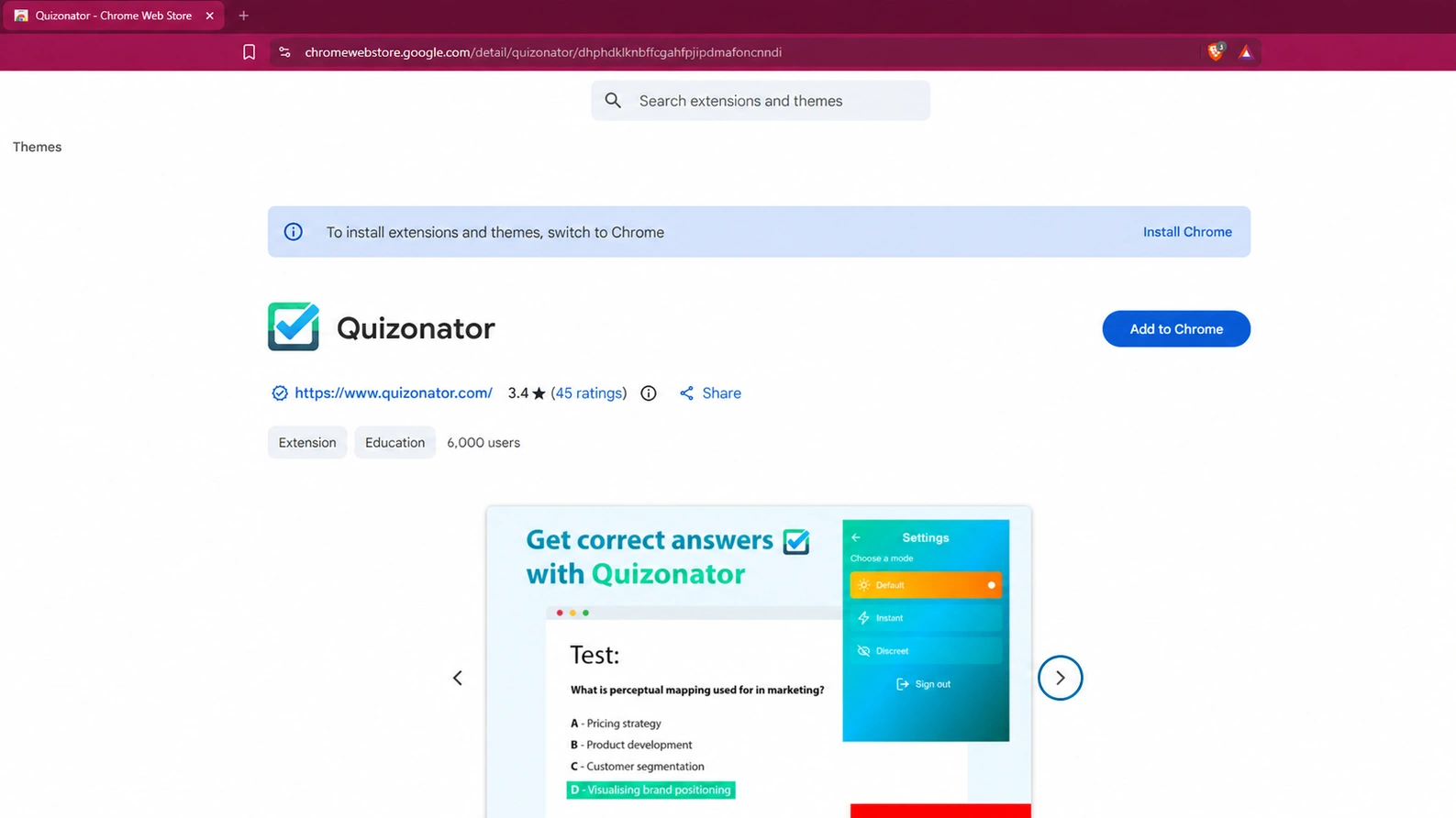
Quizonator listing in Chrome Web Store with the Add to Chrome button
01

Install the extension

Add Quizonator from the Chrome Web Store and sign in.

02

Open the quiz

Go to Moodle, Forms, Quizizz or another supported platform.

03

Start a mode

Quizonator detects the question or analyses a selected area.

04

Check the suggestion

The answer is marked on the page or shown in the extension panel.

On Android and iOS

The app includes a browser, so everything happens on one screen.

01

Download the app

Install Quizonator from Google Play or the App Store.

02

Open the platform

Sign in to the quiz page inside the app.

03

Start analysis

The app reads the question and shows a suggestion.

Choose a mobile app
Explore every mode

The same quiz. Four ways to use it.

Choose a mode and see the difference in a real recording. Close-ups and captions guide you through each step.

See the suggestion. Choose the answer yourself.

Quizonator highlights a suggested answer on the page and adds an explanation. You select the answer yourself.

On screen

The question is detected.

  • Suggestion by the question
  • A clear explanation
  • You select the answer

Real recording from Moodle · close-ups and freeze frames · Polish interface

See the full flow

Quizonator in action

A short presentation shows installation, activation and answer display.

0:00 / 1:27
Before you start

What needs to be in place?

01

A standard browser

The Chrome extension works on pages opened directly in the browser. Embedded Teams views may limit it.

02

A supported platform

The best experience is available on Moodle, Forms, Quizizz, Testportal, Canvas LMS and other listed platforms.

03

An active account

The same login and plan work on Chrome and mobile.

04

Answer selection

Default mode suggests, Instant selects the answer, and Invisible responds to hover or a click. Submitting the quiz is a separate step.

Choose a screen and try Quizonator on your quiz.

Chrome, Android and iOS use the same account and plan.